
Blog
Notes from the team.
Practical, answer-first writing on mobile, web, Salesforce, cloud, AI, and the lending stack, from the engineers who design and build these systems daily.
Mobile developmentWeb & frontendSalesforceCloud & DevOpsGCC, extended teams & hiringDigital transformation & FDEFinance process solutionsCMMS, maintenance & shopfloor complianceIndustriesCosts, comparisons & buying guidesAI developmentLending & securitization
LatestAngular signals explained: when RxJS still wins
Angular signals are the new reactivity primitive, but RxJS still owns real territory. What signals are, where they win, and where to keep RxJS.
7 min read

Building a production Android media player with Media3
Raj Parmar · 8 min read
How our QA process catches bugs before you see them
Ankush Bajad · 8 min read
What a GCC actually costs in Ahmedabad
Sangeeta · 7 min read
Hub-plus-one: adding a second GCC city
Dhiren Chauhan · 7 min read
Loan origination systems for private credit
Rohit Gojiya · 7 min read
GCC for PE portfolio companies: the India playbook
Urvish Savalia · 8 min read

Why Ahmedabad (and GIFT City) for your GCC
Abhiram Deshpande · 7 min read
MCP for lenders: connecting your LOS to AI safely
Rohit Gojiya · 7 min read

Agentforce pricing explained: the real consumption math
Bharat · 4 min read
AppExchange security review: what gets apps rejected
Krunal · 4 min read
Offline-first apps: building for farms with no signal
Siddhi Prajapati · 4 min read
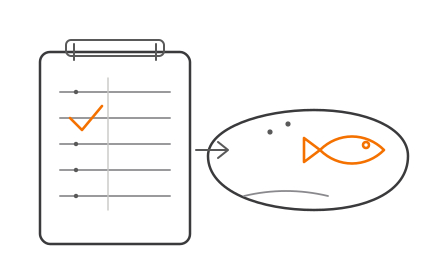
The pond culture record: what to capture, and why
Chirag Parmar · 4 min read
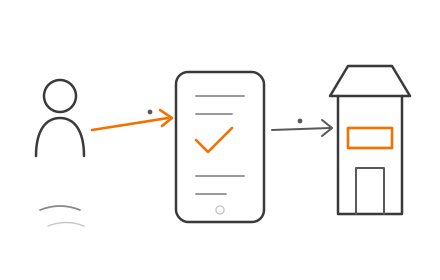
Reaching farmers directly, without cutting out the dealer
Nilang · 5 min read
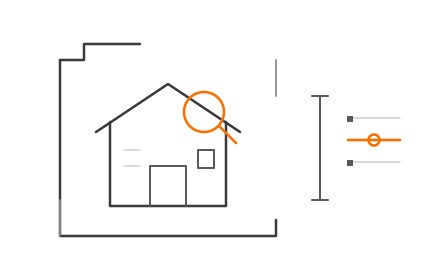
Estimating ARV with computer vision and property data
Bharat · 5 min read
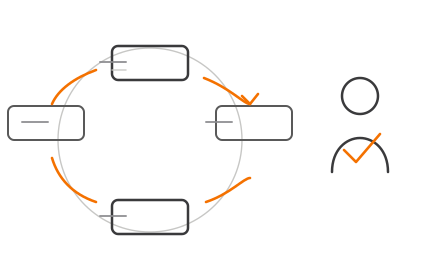
Responsible AI in lending: speed without the black box
Rohit Gojiya · 5 min read
Can AI underwrite a property without local knowledge?
Rohit Gojiya · 4 min read
Aquaculture app ROI: what it is worth per pond, per crop
Nilang · 6 min read
One borrower, twenty LLCs: seeing true sponsor risk
Bharat · 5 min read
Agile vs waterfall for outsourced projects
Mauli Patel · 4 min read

Red flags in software development proposals
Mauli Patel · 4 min read
Sales Cloud vs Service Cloud vs custom build
Nilang · 3 min read
Salesforce health check: 15 things we audit first
Urvish Savalia · 4 min read
Salesforce integration patterns: ERP, marketing, support
Sahil Parvat · 3 min read
From data room to rated deal: RTL securitizations
Rohit Gojiya · 6 min read
What is a discovery phase and why it saves money
Mauli Patel · 4 min read
AI readiness assessment: is your company ready?
Nishant · 4 min read
CPQ implementation cost and timeline explained
Sahil Parvat · 6 min read
How to evaluate LLM outputs: testing AI features
Dharmik · 6 min read
Loan origination system cost and timeline
Rohit Gojiya · 5 min read

Loan origination system requirements: a checklist
Bharat · 3 min read
The digital lending stack: an end-to-end map
Bharat · 5 min read

How to evaluate a software development company
Mauli Patel · 5 min read
RAG explained for product teams (no math required)
Dharmik · 5 min read
What is CPQ? Configure, Price, Quote in plain language
Sahil Parvat · 4 min read
What is a loan tape? Structured finance data explained
Rohit Gojiya · 4 min read
Loan origination workflow: every step explained
Bharat · 4 min read

How to write a software project brief developers love
Mauli Patel · 4 min read
LOS build vs buy: an honest framework
Rohit Gojiya · 8 min read

What is an AI-native agency (and why it matters)?
Dharmik · 4 min read
AI factory architecture: the components explained
Dharmik · 5 min read

Fixed price vs time and material: which contract fits?
Sangeeta · 4 min read
LP reporting: automating the quarterly grind
Sangeeta · 4 min read
What is a loan origination system (LOS)?
Bharat · 8 min read

When off-the-shelf CMMS stops fitting: signs to build
Nirav · 3 min read

CMMS software cost: off-the-shelf vs custom
Chirag Parmar · 3 min read
Deal flow software for venture capital firms
Krunal · 4 min read

OTC KPIs: DSO and friends explained
Sangeeta · 4 min read
What is an AI factory? A plain-language guide
Dharmik · 4 min read
Why AI popularized forward deployed engineering
Akash · 4 min read
Cloud migration cost: what companies really spend
Krunal · 4 min read

FDE vs consultant vs contractor: roles compared
Abhiram Deshpande · 4 min read
How to set up a GCC in India: a step-by-step roadmap
Akash · 6 min read
Order-to-cash automation: where the ROI hides
Sangeeta · 4 min read
VC portfolio management software: build vs buy
Krunal · 4 min read
What is a CMMS? Computerized maintenance explained
Madhuri Hansaliya · 3 min read
Angular upgrade guide: getting off old versions safely
Chirag Parmar · 5 min read
Cloud migration checklist: moving without downtime
Madhuri Hansaliya · 6 min read
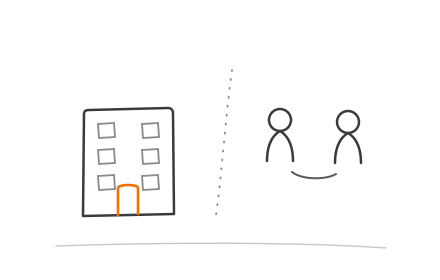
GCC vs outsourcing: cost and control compared
Dhiren Chauhan · 4 min read

What does a Salesforce development partner actually do?
Urvish Savalia · 4 min read
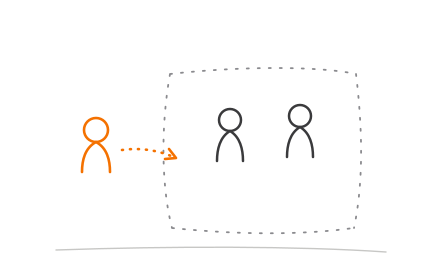
What is a forward deployed engineer (FDE)?
Vishal Matthar · 6 min read
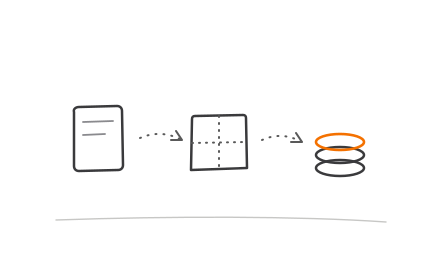
What is order to cash (OTC)? The process explained
Nishant · 4 min read

AWS vs Azure vs GCP: how to actually choose
Vishal Matthar · 7 min read
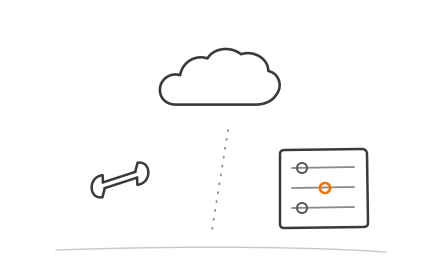
Salesforce customization vs configuration
Sahil Parvat · 4 min read
How much does a web application cost to build?
Chirag Parmar · 4 min read
What is a global capability center (GCC)? A plain guide
Akash · 8 min read
Angular vs React: choosing for enterprise apps
Vishal Matthar · 4 min read

Salesforce implementation cost: a realistic breakdown
Urvish Savalia · 6 min read
Flutter vs native development: an honest comparison
Arjun Solanki · 4 min read
Flutter vs React Native: which should you choose?
Divyesh · 4 min read

How much does it cost to develop a mobile app in India?
Ranjit Pal · 6 min read
Start
Got an idea? Let's build it.
Tell us what you're making. We'll reply within two business days with an honest take on scope, timeline, and cost.
Get a free estimate