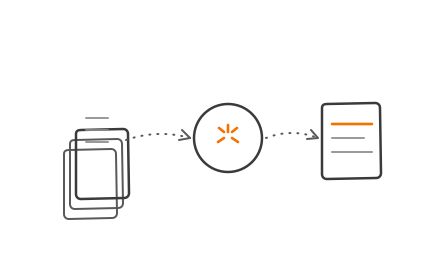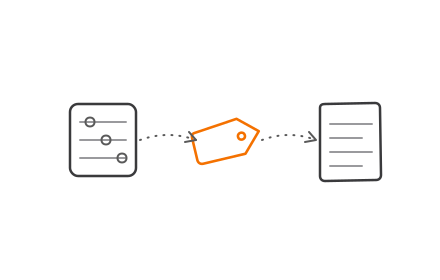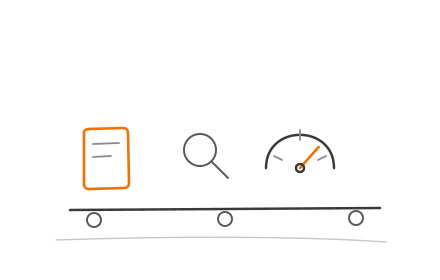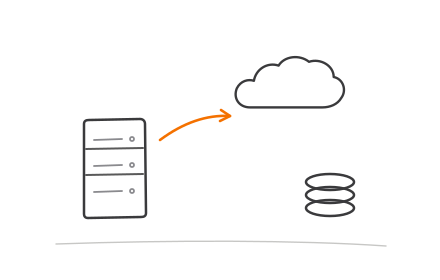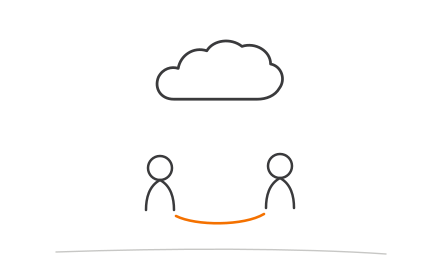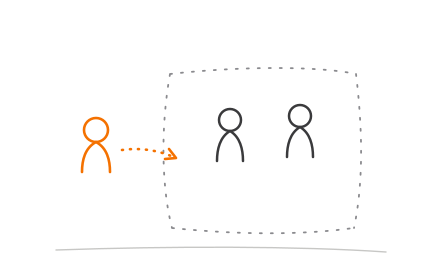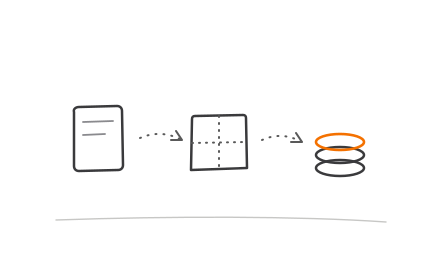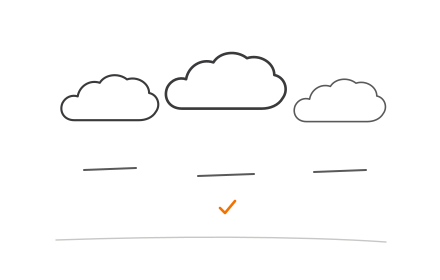
A Progressive Web App is a web application enhanced with three technical capabilities — a Service Worker for offline logic, a Web App Manifest for installability, and HTTPS as a prerequisite. React doesn't provide these by default, but adding them via Vite's plugin ecosystem is straightforward.
The basic setup is genuinely simple. Production quality is not. The configuration decisions you make around caching strategy, manifest settings, and service worker update behavior determine whether your PWA feels native or frustrating. This guide covers the complete picture — from scaffolding your first project to avoiding the configuration mistakes that quietly break most implementations.
TL;DR
- A React PWA needs three things: a Service Worker, a Web App Manifest, and HTTPS
- Use Vite with
vite-plugin-pwafor new projects — Create React App is officially deprecated as of 2025 - The manifest controls installability; the service worker controls offline behavior
- Caching strategy (CacheFirst, NetworkFirst, StaleWhileRevalidate) is your most consequential performance decision
- Always test on the production build: service workers don't run in development mode
What Is a React PWA — And When Does It Make Sense?
A React PWA is a standard React application with PWA capabilities bolted on, not a separate framework or architecture. The three technical pillars:
- Service Worker — a background script that intercepts network requests and manages offline caching
- Web App Manifest — a JSON file that tells browsers how to present the app when installed
- HTTPS — required for service workers to register (localhost is the only exception)
The business case is real. Twitter Lite's PWA produced a 65% increase in pages per session, 75% more Tweets sent, and a 20% drop in bounce rate, all while requiring less than 3% of the storage of Twitter for Android.
Pinterest's PWA rebuild cut Time to Interactive from 23 seconds to 5.6 seconds, raised time spent by 40%, and grew ad revenue by 44%.

When a React PWA is the right call
- You need one codebase for web and mobile users
- App store submission overhead isn't justified for your timeline or budget
- Your users are on low-bandwidth or unreliable connections
- You're a startup or SME prioritising speed to market over native-only features
For startups and SMEs weighing the build approach, the PWA path often wins on cost and speed — particularly for dashboards, content apps, and internal tools where users already arrive via the web. Codiot's development teams regularly guide clients through this decision based on their audience, timeline, and feature requirements.
When it's the wrong choice
- Deep hardware access is required (Bluetooth, NFC, background location)
- iOS Safari's limited PWA support is a hard dealbreaker for your primary audience
- Your distribution strategy depends on managed enterprise app stores
What You Need Before Building a React PWA
Before you write a single line of code, make sure your environment covers the basics:
Prerequisites:
- Node.js v18 or higher
- npm or yarn
- A code editor
- Basic React familiarity (components, hooks)
- A working understanding of how browsers cache assets
This guide assumes you know React. It is not a React 101.
System and Tooling Requirements
Use Vite with vite-plugin-pwa for new projects. The React team officially deprecated Create React App on February 14, 2025, citing no active maintainers and recommending Vite, Parcel, or Rsbuild as replacements.
CRA still works for existing projects, though any new build should start with Vite.
One non-negotiable: production deployment must be on HTTPS. MDN confirms that ServiceWorkerContainer.register() only works in secure contexts. Localhost is the only HTTP exception.
Icons and Assets
PWAs require icons at two minimum sizes: 192×192px and 512×512px, placed in the public/ folder. iOS devices additionally need an apple-touch-icon.png at 180×180px for home screen installation.
Two tools simplify this: Favicon.io and PWA Asset Generator both generate complete icon sets from a single source image, cutting out the tedious manual resizing.
How to Build a Progressive Web App with React — Step by Step
Step 1: Scaffold Your React Project with Vite
npm create vite@latest my-pwa-app -- --template react
cd my-pwa-app
npm install
This creates a clean React project. PWA features aren't included by default; they're added on top via plugins. Install the PWA plugin as a dev dependency:
npm install vite-plugin-pwa -D
vite-plugin-pwa handles both manifest generation and Service Worker compilation via Workbox under the hood.
Step 2: Configure vite.config.js
import { defineConfig } from 'vite'
import react from '@vitejs/plugin-react'
import { VitePWA } from 'vite-plugin-pwa'
export default defineConfig({
plugins: [
react(),
VitePWA({
registerType: 'autoUpdate',
manifest: {
name: 'My PWA App',
short_name: 'MyApp',
description: 'A React Progressive Web App',
theme_color: '#ffffff',
background_color: '#ffffff',
display: 'standalone',
start_url: '/',
icons: [
{ src: '/icons/icon-192.png', sizes: '192x192', type: 'image/png' },
{ src: '/icons/icon-512.png', sizes: '512x512', type: 'image/png', purpose: 'any maskable' }
]
}
})
]
})
Display mode options:
| Mode | Behaviour |
|---|---|
standalone |
Hides browser chrome — looks native. Standard choice. |
fullscreen |
Uses entire screen. Best for games/media. |
minimal-ui |
Shows minimal navigation controls. |
browser |
Normal browser tab. Defeats the point of PWA installation. |

Step 3: Register the Service Worker
In src/main.jsx:
if ('serviceWorker' in navigator) {
window.addEventListener('load', () => {
navigator.serviceWorker.register('/sw.js')
})
}
Registering after load avoids blocking the initial page render.
For CRA projects: locate serviceWorkerRegistration.unregister() in src/index.js and change it to serviceWorkerRegistration.register(). CRA disables service workers by default, so this change opts your app into registration.
Step 4: Configure Caching and Add Offline Support
Inside the VitePWA plugin config, add Workbox options:
workbox: {
globPatterns: ['**/*.{js,css,html,ico,png,svg}'],
runtimeCaching: [
{
urlPattern: /^https:\/\/api\.yoursite\.com\/.*/i,
handler: 'NetworkFirst',
options: { cacheName: 'api-cache' }
},
{
urlPattern: /\.(?:png|jpg|jpeg|svg|gif)$/,
handler: 'CacheFirst',
options: { cacheName: 'image-cache' }
}
]
}
Caching strategy guide:
- CacheFirst — serves from cache first; best for images and fonts that rarely change
- NetworkFirst — tries network first, falls back to cache; best for API responses where fresh data matters
- StaleWhileRevalidate — serves cached version immediately, updates cache in background; good for non-critical assets where slightly stale content is acceptable

Caching keeps content available when users lose their connection. The next piece is letting users know they're offline — a small UX detail that significantly affects perceived reliability. Use this custom hook to track network status:
import { useState, useEffect } from 'react'
function useOnlineStatus() {
const [isOnline, setIsOnline] = useState(navigator.onLine)
useEffect(() => {
const handleOnline = () => setIsOnline(true)
const handleOffline = () => setIsOnline(false)
window.addEventListener('online', handleOnline)
window.addEventListener('offline', handleOffline)
return () => {
window.removeEventListener('online', handleOnline)
window.removeEventListener('offline', handleOffline)
}
}, [])
return isOnline
}
Conditionally render an offline banner when isOnline is false. This keeps users informed and prevents confusion when cached content is being served instead of live data.
Key Configuration Parameters That Define Your PWA's Behaviour
Three configuration choices consistently separate well-behaved PWAs from ones that frustrate users in production: update strategy, caching scope, and icon format.
registerType: 'autoUpdate' vs 'prompt'
- autoUpdate — silently swaps in the new service worker on next load; users may briefly see stale content mid-session
- prompt — developer controls when to notify users about updates; requires additional UI but gives more precise control
For most apps, autoUpdate works fine. If you're deploying frequent updates where users might encounter breaking changes mid-session, implement the prompt pattern with a visible update notification.
Caching Strategy Per Resource Type
Applying one strategy to every resource type is the most common caching mistake. Google's service worker performance research found that controlled returning desktop visits averaged 2,568ms page load versus 3,612ms without a controlling service worker — a 29% difference that depends on matching each resource type to the right strategy.
Practical mapping:
| Resource | Strategy | Reason |
|---|---|---|
| Images, fonts | CacheFirst | Rarely changes; speed over freshness |
| API responses | NetworkFirst | Fresh data is critical |
| CSS, JS bundles | StaleWhileRevalidate | Acceptable to serve previous version briefly |
Icon Sizes and maskable Purpose
Chrome's Lighthouse installability requirements are explicit: manifests must include 192×192 and 512×512 icons, a start_url, and an accepted display value.
The maskable purpose on the 512px icon matters on Android. Without it, the OS applies a forced circular crop that may cut off content at the edges. Adding purpose: 'any maskable' lets Android's adaptive icon system apply its own shape to your icon without destroying the design.
Common Mistakes When Building a React PWA
Most React PWA failures trace back to service worker configuration, not application logic. These five mistakes account for the majority of broken builds:
Testing in development mode — Service workers only activate in production builds.
npm run devskips registration in both Vite and CRA by default. Always test withnpm run build+npm run preview(Vite) orserve(CRA), using an incognito window to avoid stale cache interference.Incorrect icon paths in the manifest — Icons not placed in
public/or paths mismatched in theiconsarray are the most common installability failures. Open Chrome DevTools → Application → Manifest to confirm. A red warning next to the icon means the file is unreachable.Stale content after a service worker update — The old worker enters a "waiting" state and won't swap until all tabs running the old version close. Fix this with
registerType: 'autoUpdate', or prompt users manually with a notification that callsskipWaiting()on acknowledgment.CacheFirst applied to API routes — Applying CacheFirst globally causes API endpoints to return stale data indefinitely. Scope caching strategies by URL pattern —
/api/*routes should useNetworkFirstorStaleWhileRevalidate.Skipping HTTPS verification post-deployment — Service workers fail silently over HTTP: no error, no offline capability. Run a Lighthouse audit immediately after deploying and confirm the URL starts with
https://. Vercel, Netlify, and Firebase Hosting all enforce HTTPS by default.

React PWA vs. Alternatives — When to Choose What
A React PWA suits you when a single codebase needs to reach users across browsers without app-store distribution. E-commerce storefronts, dashboards, content platforms, and internal tools all fit the profile.
Choose React PWA when your project needs:
- One codebase deployable across all browsers
- Offline or low-connectivity tolerance
- No app-store submission or review cycle
- A web-first product with installable capability
Next.js with next-pwa — better when server-side rendering and SEO are primary requirements. next-pwa is a third-party Workbox-based plugin (not an official Next.js package) that works similarly to vite-plugin-pwa. Choose this path when your app depends on SSR data-fetching patterns and Next.js routing.
- React Native or Capacitor — necessary when deep native API access (Bluetooth, NFC, background tasks) or app-store distribution is a hard requirement. Both add significant development and maintenance overhead compared to a pure web approach.

The iOS caveat: iOS Safari added Web Push support for installed PWAs in iOS 16.4, but Background Sync remains unsupported across all Safari versions. If your primary audience is iOS mobile users expecting full native-equivalent background capabilities, a Capacitor wrapper around the React app is worth the trade-off.
Frequently Asked Questions
Can React be used to build a PWA?
Yes — React is fully compatible. PWA capabilities come from build tooling (vite-plugin-pwa for Vite, or the CRA PWA template), not from React itself. React doesn't enforce any PWA-specific architecture; the service worker configuration does the actual work.
What is a PWA in ReactJS?
A PWA in React is a standard React application enhanced with a Service Worker (offline caching), a Web App Manifest (installability), and served over HTTPS. It can be installed on a device home screen, loads fast on repeat visits, and works offline.
Does a React PWA work on iOS Safari?
Partially. Installation is possible via "Add to Home Screen" but requires manual user action — there is no browser-level install prompt on iOS. Push notifications require iOS 16.4 or later and only work when the PWA is installed. Background sync and several other PWA APIs remain unsupported in Safari.
What is the difference between a React PWA and a native mobile app?
A React PWA runs in the browser engine and is delivered via URL. A native app is compiled for a specific OS and distributed through an app store. PWAs are faster to build and maintain with a single codebase, but have limited access to device hardware APIs compared to native applications.
How do I test if my React PWA is working correctly?
Use Chrome DevTools: open the Application tab to inspect Service Worker status, Manifest, and Cache Storage. Run Lighthouse and select "Progressive Web App" for a pass/fail checklist. Always test on the production build — the dev server won't run the service worker.
Should I use Vite or Create React App for my React PWA?
Vite for new projects. vite-plugin-pwa is actively maintained, builds are faster, and CRA was officially deprecated by the React team in February 2025. Existing CRA projects can still use the built-in serviceWorkerRegistration approach, but migrating to Vite is the stronger long-term choice.